Tracking Quantities (BOQ)
The Bill of Quantities (BOQ) tab inside each project is your quantity surveying and cost tracking engine. It allows project managers, commercial estimators, and site engineers to track agreed contract quantities, record daily completed work, link take-off materials, and detect budget overruns early.
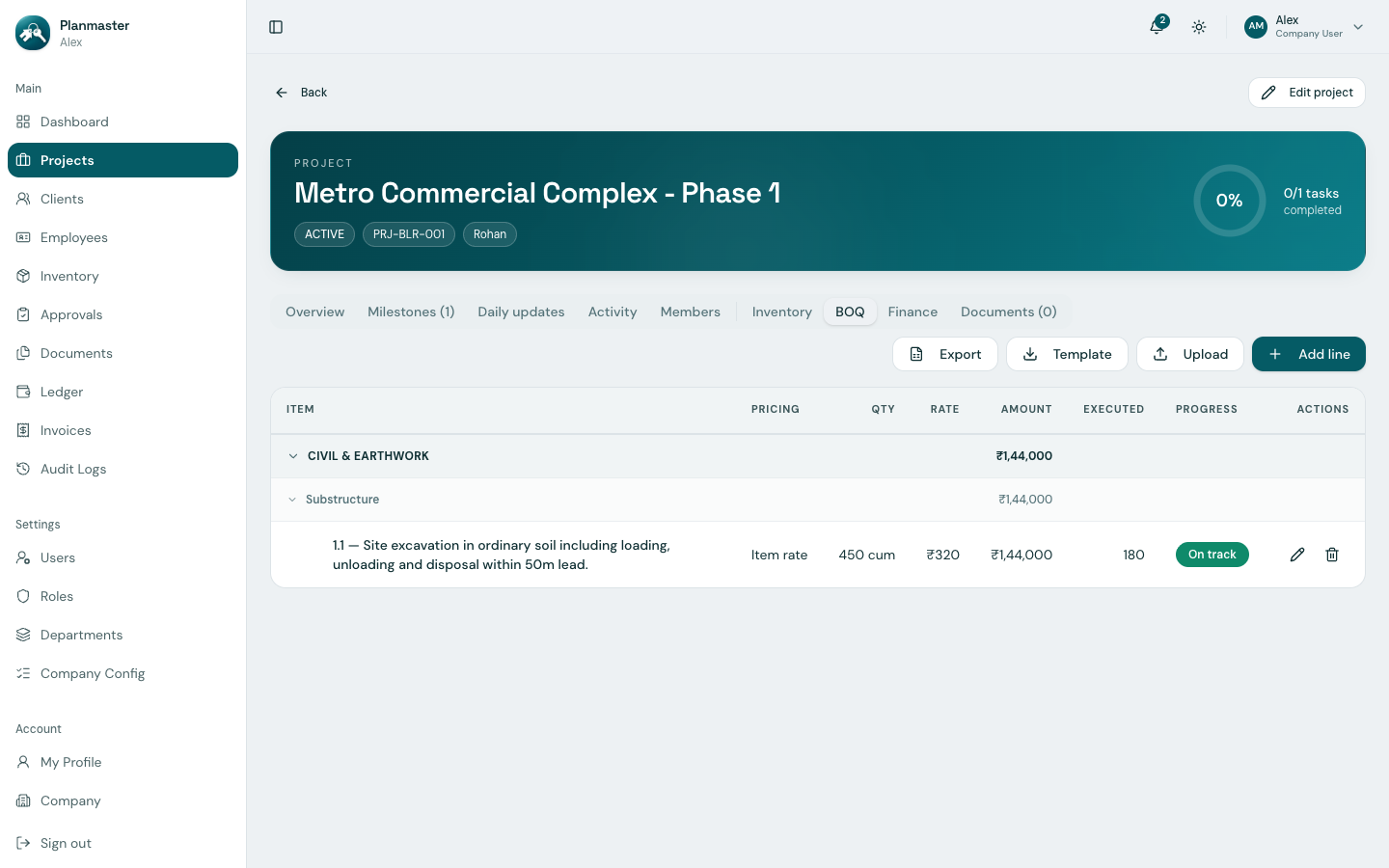
Hierarchical Structure: Sections & Work Items
In large civil and building contracts, thousands of items must be organized systematically. Planmaster structures BOQs into:
- Sections (e.g., Section 1: Civil & Earthwork, Section 2: Concrete & RCC, Section 3: Finishing).
- Work Sections & Line Items (e.g., Item 1.1: Excavation in ordinary soil, Item 1.2: PCC 1:4:8 in foundation).
- Automatic Section Subtotals: Planmaster automatically calculates the sum of all item amounts in each section, rolling up to the total contract value.
Adding BOQ Items
Method 1: Creating a Line Item Manually
- Open your project and click the BOQ tab.
- Click the Add line button.
- Complete the line item fields:
- Item code: The contractual numbering code (e.g.,
1.1). - Section: The top-level group (e.g., Civil Works).
- Work section: The sub-group beneath the section (e.g., Substructure).
- Description *: Detailed contractual specification (e.g., Earthwork excavation in soil including 50m lead disposal).
- Unit *: Measurement unit (e.g.,
cumfor cubic meters,sqm,MTfor steel,nos). - Pricing type *:
Item rate(rate × quantity),Lump sum, orProvisional sum. - Quantity: Contract agreed quantity (e.g.,
450). - Rate: Contract rate in Rupees (e.g.,
320). Total planned amount calculates automatically (₹1,44,000.00). - Executed qty: Current quantity completed on site (e.g.,
180). - Notes: Any additional remarks on the line item.
- Click Add.
Method 2: Bulk Upload via Excel Template
If your tender or contract has hundreds of line items, typing them individually is impractical. Planmaster provides an Excel bulk import tool:
- On the BOQ tab, click Template to download the standardized
boq-bulk-upload-template.xlsxfile directly from Planmaster. - Paste your item numbers, descriptions, units, quantities, and rates into the spreadsheet.
- Click Upload and select the filled
.xlsxfile. Planmaster validates all rows and imports the entire schedule in seconds! - To share the schedule with external consultants or clients, click Export to generate an Excel spreadsheet.
Take-Off Materials Linking
One of Planmaster's most powerful features is linking physical materials to BOQ line items:
- When defining a concrete item (e.g., M25 Grade RCC Footings), you can attach Take-off Materials (e.g., OPC 53 Cement: 7.2 bags/cum and 16mm TMT Steel: 110 kg/cum).
- As site engineers log executed concrete volumes, Planmaster automatically calculates the theoretical material consumption and compares it with your actual warehouse stock issues!
Overrun Warnings & Risk Controls
- Progress Overruns: If site conditions require excavating 520 cum instead of the planned 450 cum, Planmaster flags the line item in amber/red and posts an alert on your company dashboard under BOQ Progress Overruns.
- Material Overruns: If actual steel used on site exceeds the take-off estimation, a BOQ Material Overruns warning appears immediately.
- This empowers project managers to raise variation claims with the client before the company incurs unrecoverable costs!