Managing Clients
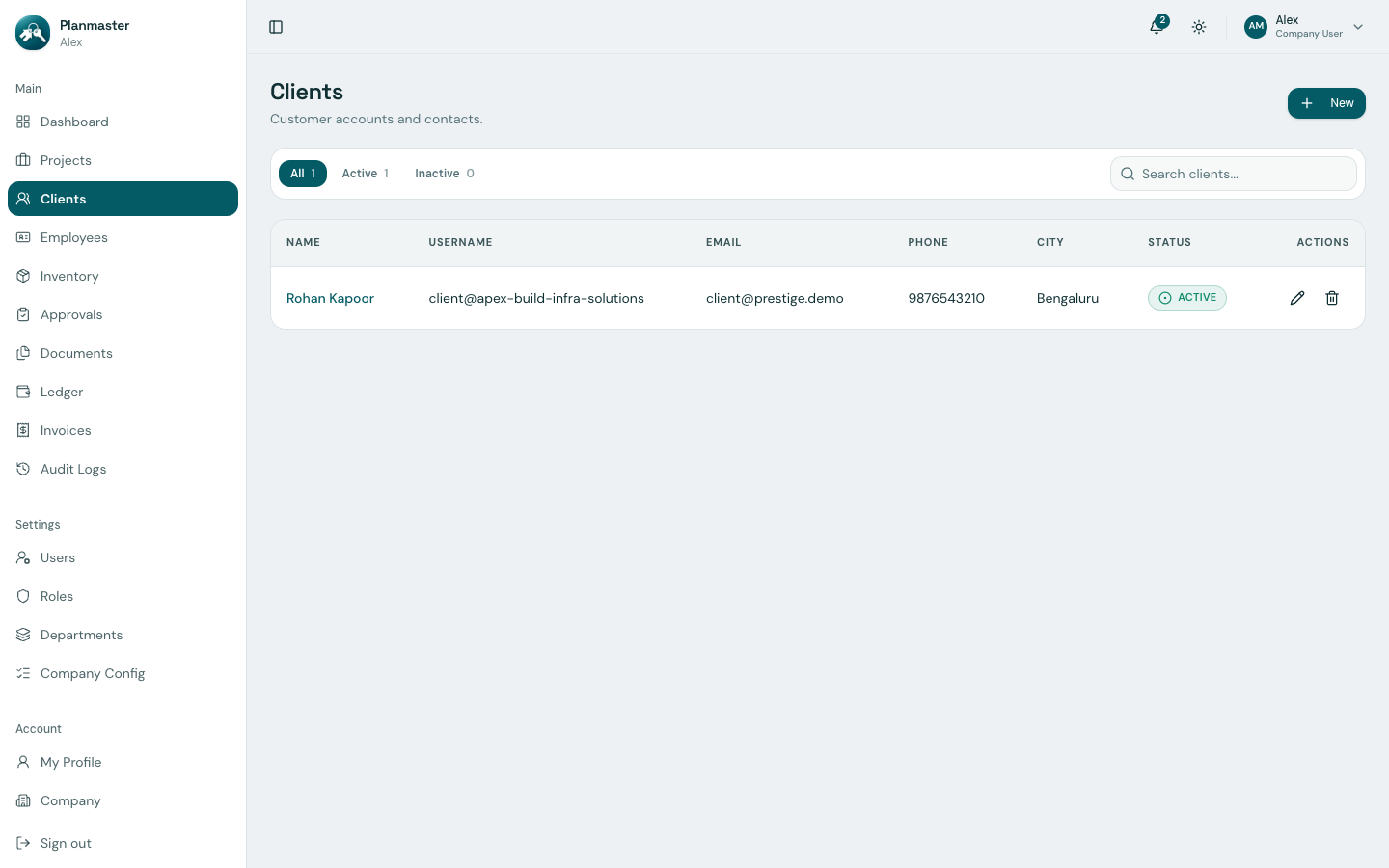
The Clients module (/clients) serves as your company's customer account and contact directory. In Planmaster, clients can be given portal login access to view their projects, review issued invoices, and track site milestones.
How to Add a New Client (Step-by-Step)
- Click Clients in the left sidebar menu.
- Click the blue New button at the top-right.
- The New Client dialog will appear.
Client Form Fields:
- Email *: Official email address of the client representative (this handles their portal login and notification alerts).
- Password:
- Leave this blank to automatically email the client a one-time activation setup link.
- Or, enter a secure initial password (minimum 8 characters) to provide to them directly.
- First Name *: Representative's first name (e.g., Rohan).
- Last Name *: Representative's last name or company extension (e.g., Kapoor).
- Phone / WhatsApp: Direct mobile contact for site updates and payment follow-ups.
- Street Address: Office or postal billing address for tax invoicing.
- City: City of the client's registered office (e.g., Bengaluru).
- State: Select from the dropdown of Indian States & Union Territories (e.g., Karnataka).
- District: Select the administrative district from the dynamically populated dropdown (e.g., Bengaluru Urban).
- PIN Code: 6-digit postal code (e.g.,
560103). -
Country: Defaults to India.
-
Click Create.
Planmaster automatically creates the client account and assigns a unique client portal username (e.g., client@apex-build-infra-solutions).
Why Adding Clients Streamlines Operations
- One-Click Project Assignment: When creating a new project, simply select the client from the dropdown menu to link all billing and reports automatically.
- Automated Invoice Addressing: When raising an invoice, client billing details and addresses populate with zero manual typing.
- Client Account Page: Click on any client from the list (
/clients/:id) to view all past and current projects executed for them, along with total amounts billed, collected, and currently outstanding.