Departments & Job Titles
To maintain an orderly organizational structure and simplify employee onboarding, Planmaster allows Company Administrators to establish standardized Departments (like Engineering & Projects or Accounts & Commercial) and professional Designations (like Senior Project Manager or Site Supervisor).
Access this section from the left sidebar under Settings > Company Config, then switch to the Departments or Designations tab.
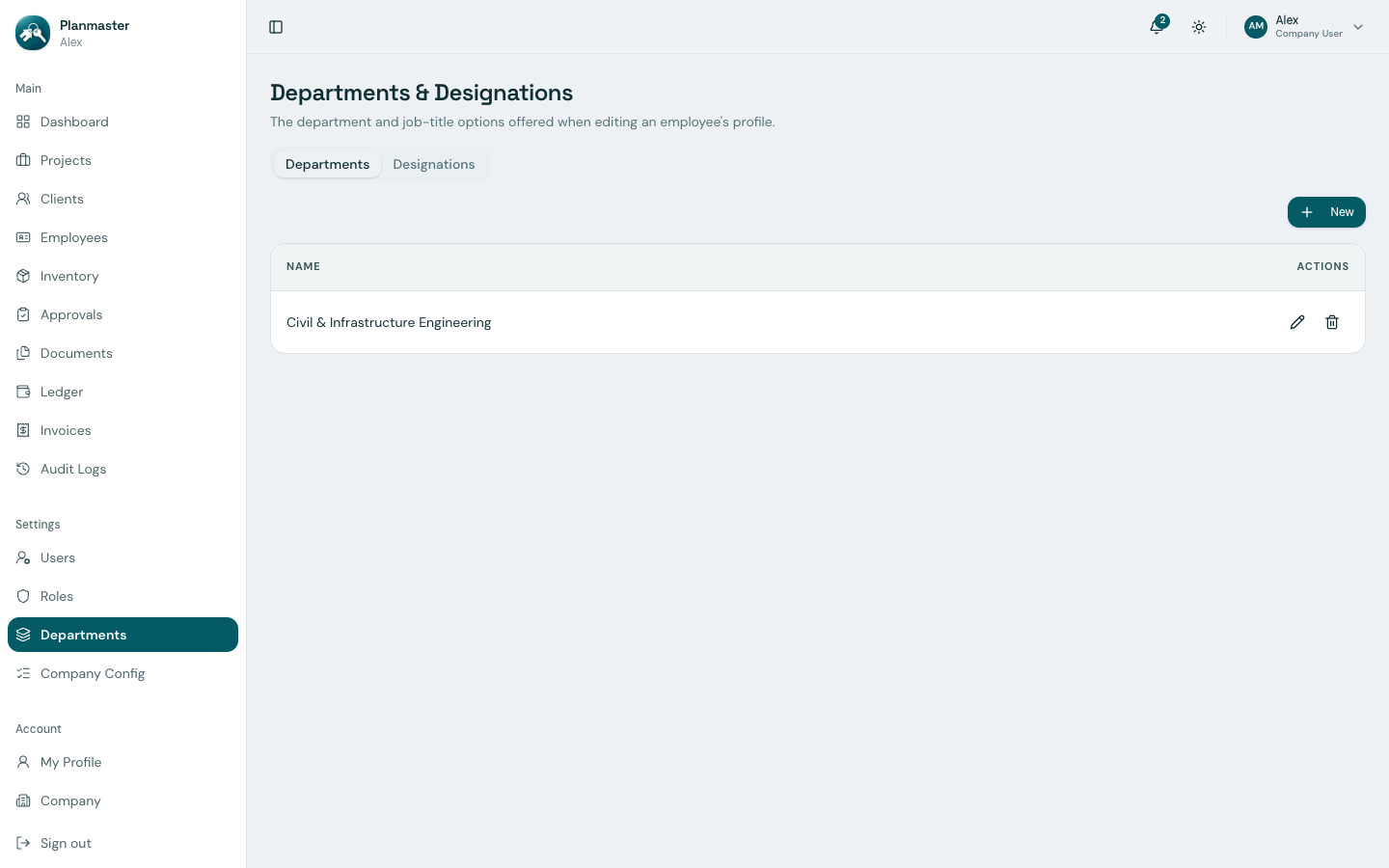
1. Setting Up Departments
Departments group your team members into functional operating divisions across your enterprise.
How to Add a Department:
- Click Settings > Company Config in the left sidebar menu.
- Select the Departments tab.
- Click the blue New button.
- Enter the department name (for example: Engineering & Projects, Accounts & Commercial, Procurement & Stores, or Quality & Safety).
- Click Create.
2. Setting Up Job Titles (Designations)
Designations define the official job roles printed on employee profiles and organizational charts:
How to Add a Designation:
- In Settings > Company Config, click the Designations tab.
- Click the blue New button.
- Type the official title (for example: Senior Project Manager, Site Engineer, Quantity Surveyor, Storekeeper, or Safety Inspector).
- Click Create.
Why Setting Up Departments & Designations Saves Time
Once created, these departments and designations populate the dropdown menus whenever you invite a new colleague or edit an employee's profile in the Employee Directory. This eliminates inconsistent naming (e.g., preventing variations like Site Engg, Site Eng, and Field Engineer).