Projects at a Glance
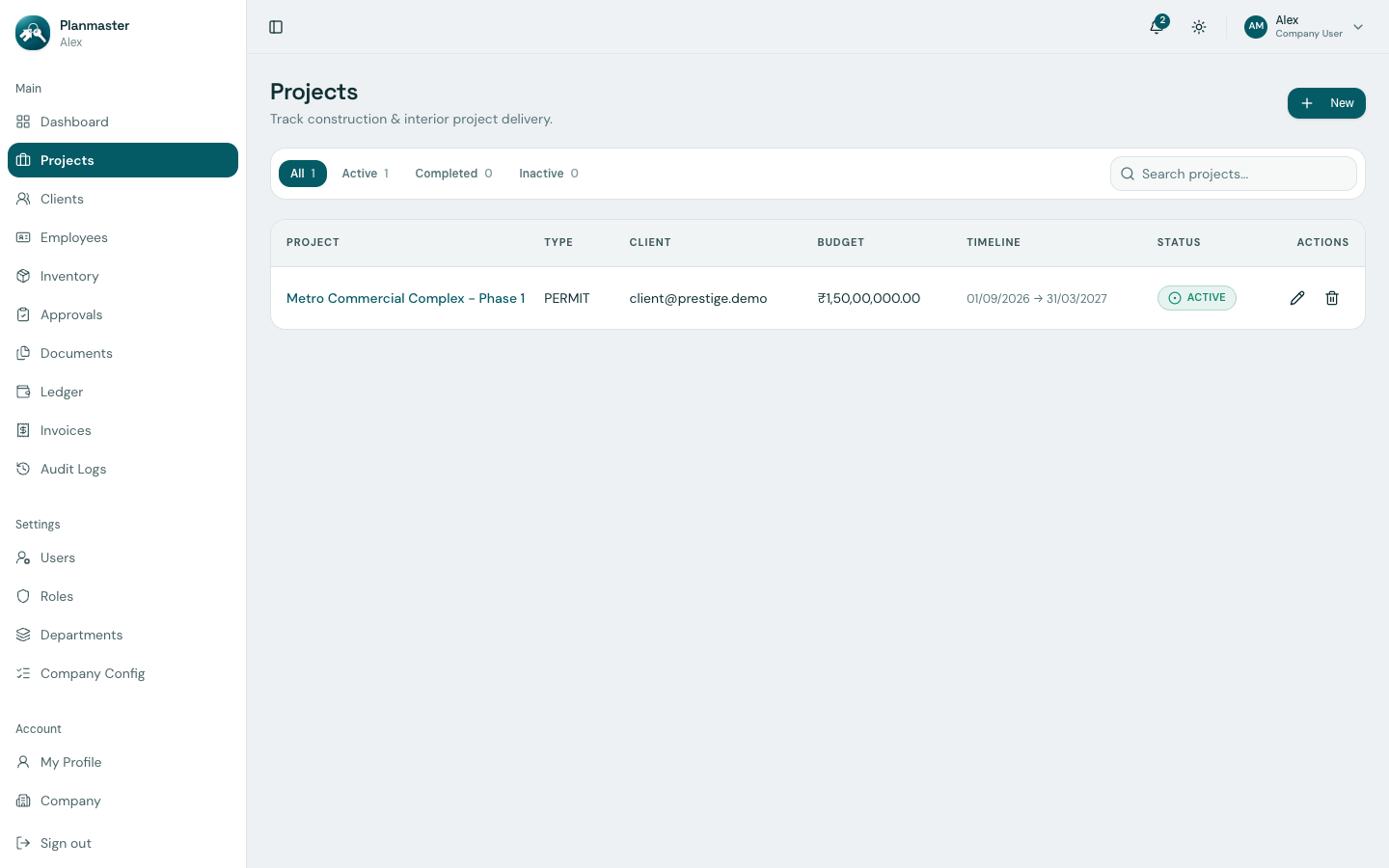
In Planmaster, a Project is the central digital hub for any construction contract, building site, infrastructure job, or client engagement undertaken by your company.
Inside each project workspace, you manage site milestones, daily progress reports (DPRs), quantities (BOQ), site team access, material allocations, project financials, and construction drawings in one integrated place.
What Does Each Status Mean?
Every project has a clear status badge in the directory:
| Status Badge | What it Means | Real-Life Construction Example |
|---|---|---|
| Active | The contract is active and mobilization or construction is underway on site. | Daily tasks are being assigned, site engineers log DPRs, and materials are dispatched. |
| Completed | Construction is 100% finished and certified. | Final snag lists are cleared, completion certificates issued, and the building handed over to the client. |
| Inactive | Project is archived, shelved, or awaiting formal mobilization. | Bids pending award, contracts deferred by the client, or archived legacy sites. |
Inside a Project Workspace (The 10 Tabs)
When you select any project from the directory, Planmaster presents 10 specialized tabs across the top:
1. Overview Tab
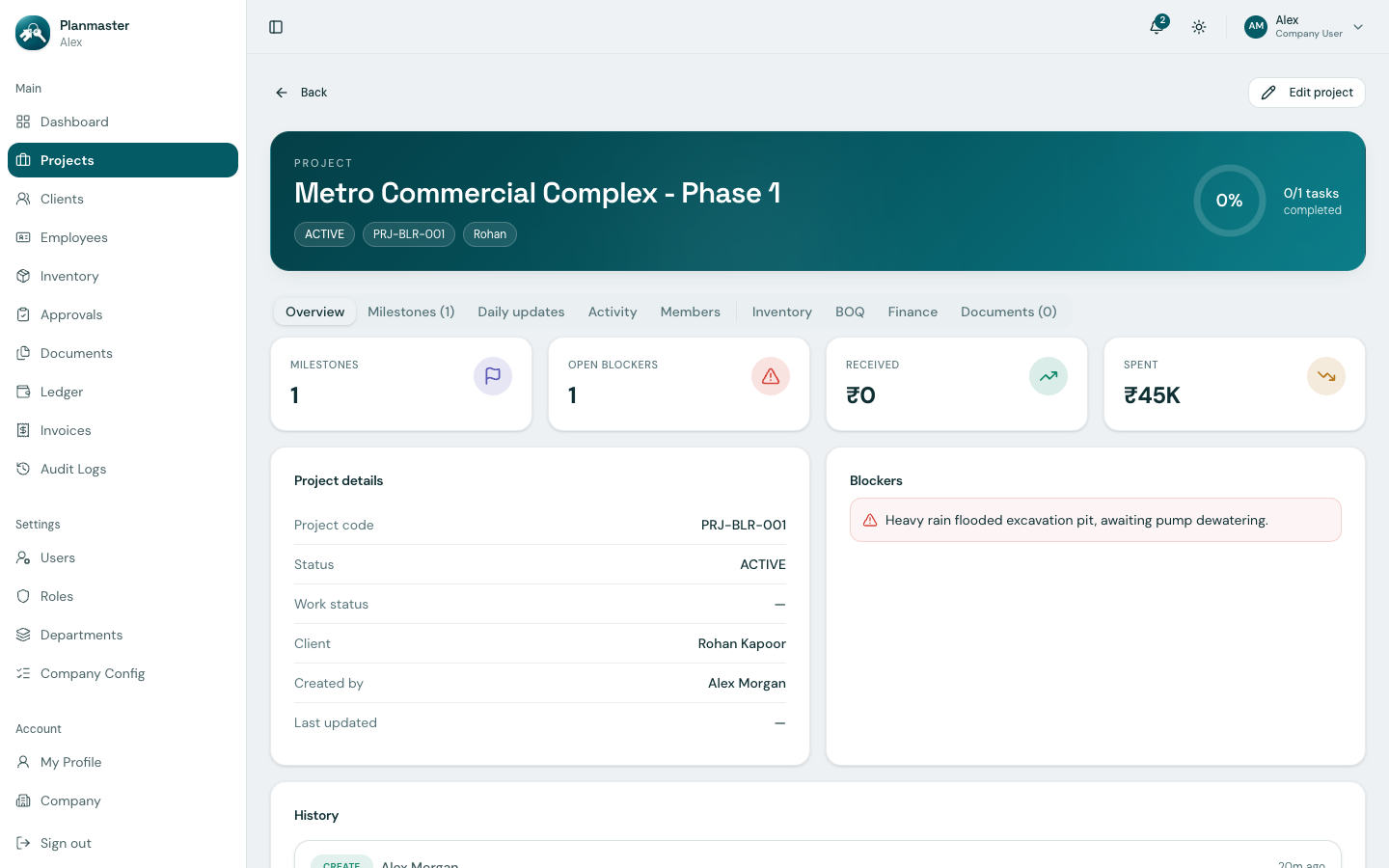
Your high-level project summary:
- Project Code & Client: Quick identification (e.g., PRJ-BLR-001 for Rohan Kapoor / Prestige Estate Projects Ltd).
- Budget & Milestones: Total contract value, milestone count, and active site blockers count.
- Financial Pulse: Live running totals of client money received vs. expenses spent on this site.
- Audit History: Chronological log of recent modifications made to project metadata.
2. Milestones Tab
The structural spine of your project schedule. Break your contract into major project stages (such as Substructure & Foundation Works or Superstructure RCC Frame) and nest daily work tasks beneath them. - Learn more: Milestones & Project Tasks
3. Daily Updates Tab
Your site shift log. Enables site supervisors and field engineers to submit Daily Progress Reports (DPRs) with weather conditions, ground conditions, manpower notes, and one-click AI Summarize. - Learn more: Daily Progress Reports (DPR)
4. Activity Tab
A dedicated project-level audit trail recording every change made to tasks, milestones, members, and documents on this specific site.
5. Members Tab
Control who has access to this site. Assign project managers as owner, site engineers as editor, and clients or auditors as viewer.
- Learn more: Assigning Team Members
6. Inventory Tab
Track materials allocated specifically to this site. Monitor materials received from the warehouse, on-site consumption, and returnable equipment checked out to the site.
7. BOQ (Bill of Quantities) Tab
Your quantity surveying engine. Organize contractual items into hierarchical work sections, monitor planned vs. executed quantities, link take-off materials, and perform bulk Excel imports. - Learn more: Tracking Quantities (BOQ)
8. Checklists Tab
Attach safety and quality-control checklists — from your company's library or the global template list — directly to this project, and track how many required items have been answered. - Learn more: Safety & Quality Checklists
9. Finance Tab
Live financial command center for the project. Review total contract budget against actual expenditures (Budget Variance), and inspect the itemized Project Ledger and Project Invoices sub-tabs. - Learn more: Project Finance & Budget Tracking
10. Documents Tab
Central digital drawing vault for the site. Store architectural blueprints, structural drawings, soil test reports, and municipal permits so site supervisors can access them from tablets or phones.