Screen Tour & Navigation
This guide walks you through logging in, finding your way around the screen, and understanding what the numbers on your main dashboard mean.
Logging In to Planmaster
Go to https://app.planmaster.in in your web browser (Google Chrome, Microsoft Edge, Apple Safari, or on your mobile device).
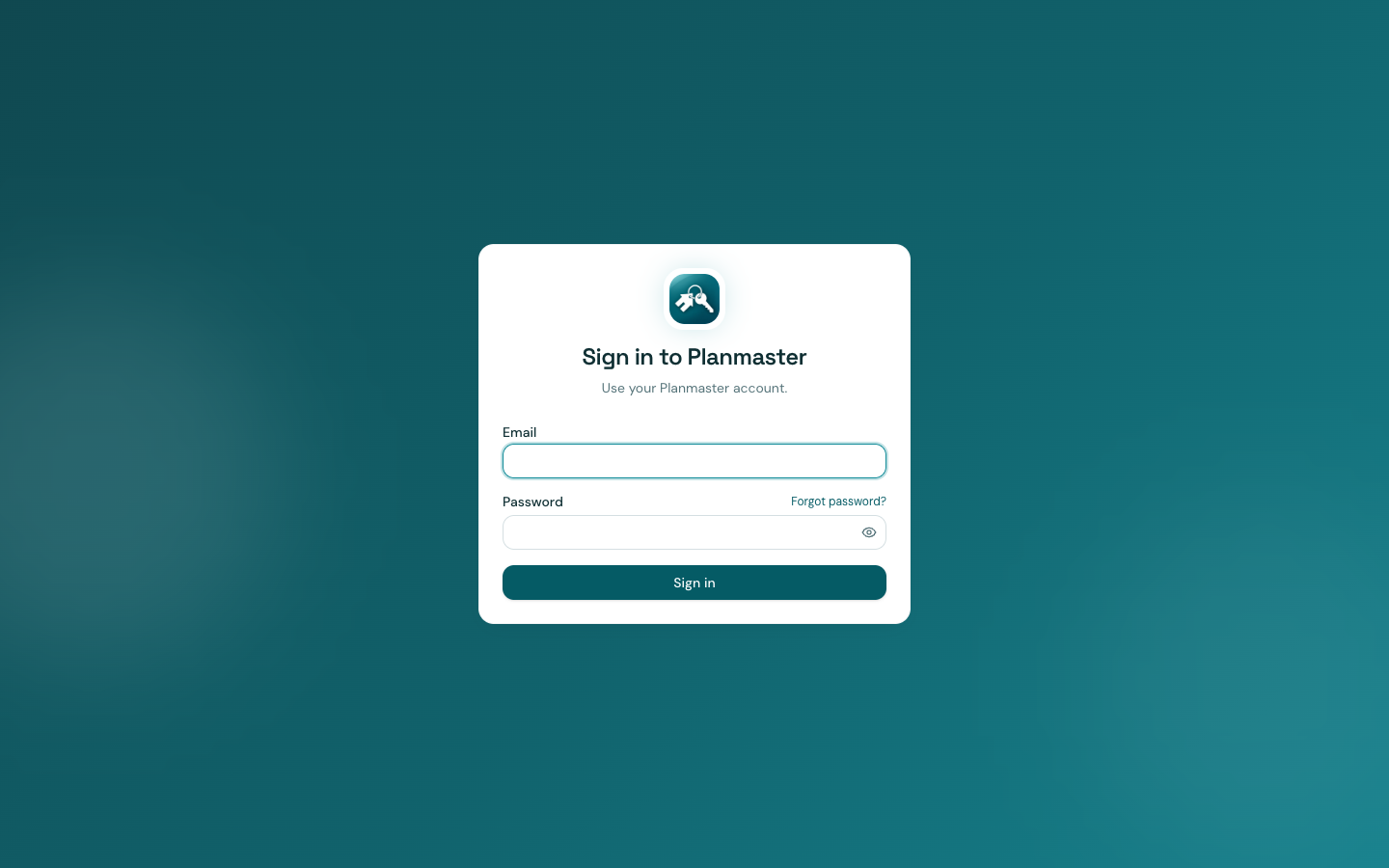
- Enter your registered work Email and Password.
- Click the blue Sign in button.
- Forgot your password? Click Forgot password?, enter your work email, and Planmaster will send you a secure password reset link.
Your Home Screen (The Dashboard)
Once you log in, you will see your company dashboard. This page gives you an instant, real-time snapshot of everything happening across your business.
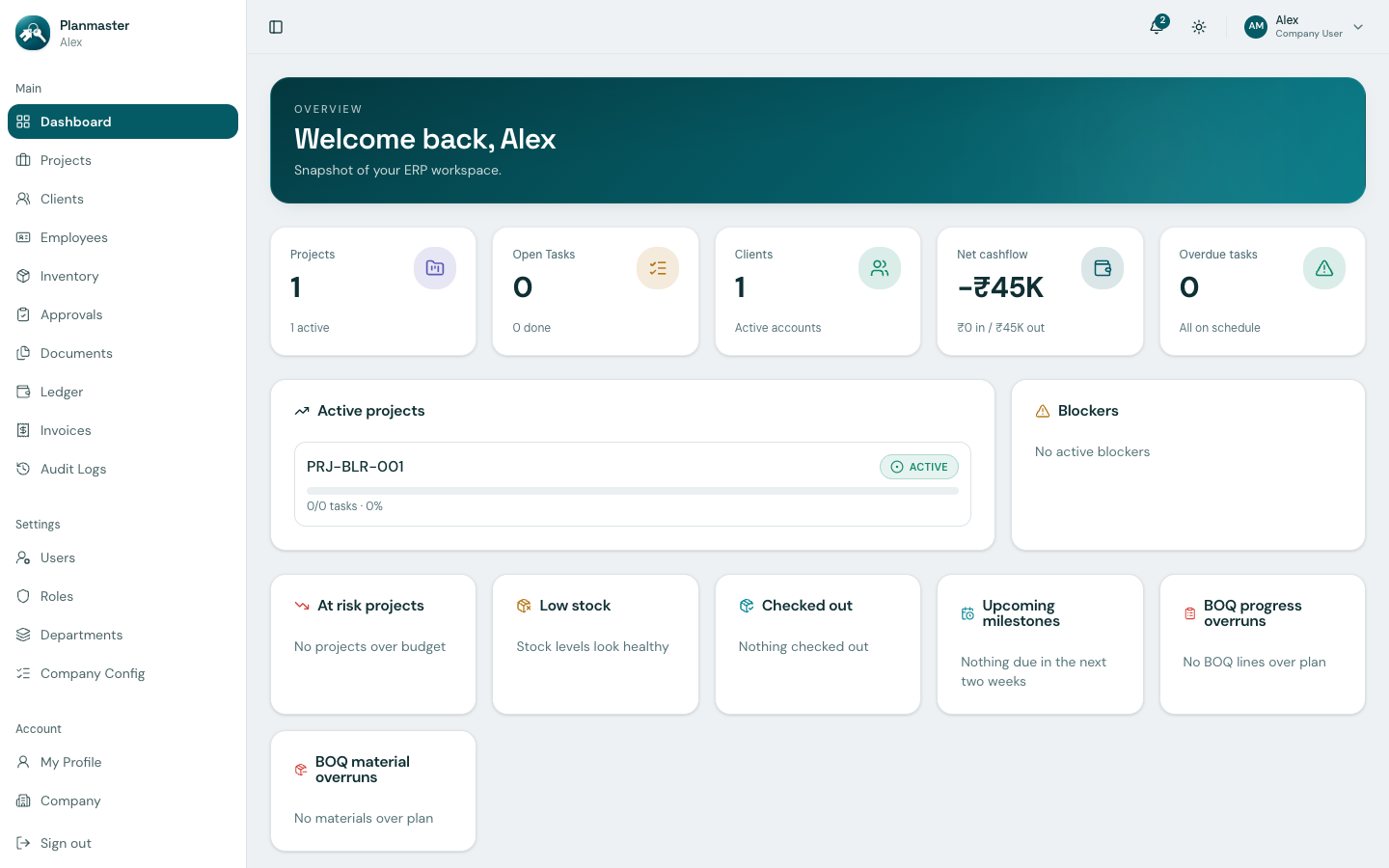
The 5 Top Summary Cards
- Projects: Total number of projects currently registered, with active count (e.g.,
1 active). - Open Tasks: How many daily tasks your team is currently executing across all sites.
- Clients: Number of active customer and client portal accounts.
- Net Cashflow: Total money collected from clients minus all expenses booked in the company ledger (e.g.,
-₹45Kindicates ₹45,000 net expenditure on site permits or initial mobilization). - Overdue Tasks: Count of tasks that have passed their scheduled completion date.
Warning & Risk Alert Cards
Below the summary metrics, Planmaster automatically scans your projects and inventory to highlight site risks before they become costly:
- Active Projects: Shows your active job sites, percentage of tasks finished, and direct links into each site.
- Blockers: Highlights critical site roadblocks reported by engineers (such as waterlogged foundation trenches or pending drawing approvals).
- At Risk Projects: Warns you if site expenditures have exceeded the contracted project budget.
- Low Stock: Alerts you if materials in your central warehouse drop below your safe minimum reorder buffer.
- Checked Out: Tracks returnable plant, machinery, tools, and scaffolding currently checked out to job sites.
- Upcoming Milestones: Shows major project stages due within the next 14 days for proactive inspection planning.
- BOQ Progress Overruns: Flags any line item where actual executed quantity has exceeded the client's contractual plan.
- BOQ Material Overruns: Warns if theoretical material consumption exceeds the Bill of Quantities allocation.
Finding What You Need (The Left Sidebar)
The menu on the left side of your screen is organized into three simple sections:
├── Main
│   ├── Dashboard      → Your home screen and summary numbers
│   ├── Projects       → All your construction contracts, sites, and jobs
│   ├── Clients        → Customer accounts, contacts, and billing addresses
│   ├── Employees      → Staff directory, phone numbers, and job titles
│   ├── Inventory      → Cement, steel, equipment, and warehouse stock
│   ├── Approvals      → Material transfer requests waiting for store sign-off
│   ├── Checklists     → Safety & quality checklist templates (global and company)
│   ├── Documents      → Blueprints, site drawings, and municipal permits
│   ├── Ledger         → Daily company expenses, vouchers, and bills
│   ├── Invoices       → Bills sent to clients and payment records
│   └── Audit Logs     → System change history and security trail
│
├── Settings
│   ├── Users          → Add new employees and set initial passwords
│   ├── Roles          → Control who can see financial data or edit projects
│   └── Company Config → ID sequences, picklists, and Departments/Designations tabs
│
└── Account
    ├── My Profile     → Personal details, themes, and your effective permissions
    └── Company        → Registered address, GSTIN, CIN, and plan usage meters
Need More Screen Space?
If you are viewing wide tables like a Bill of Quantities or invoice sheet, click the Toggle Sidebar button at the top-left of the screen. This collapses the menu so you have the whole screen for your data.
Helpful Buttons in the Top Navigation Bar
In the top-right header of every screen, you have quick access shortcuts:
- Notifications Bell (
Alt + T): See instant alerts when someone assigns you a task or approves your material request. - Theme Toggle (Sun / Moon): Quick switch between light mode and dark mode for comfortable reading in direct sunlight on site or in an office at night.
- Account Menu (Avatar Initials): Click your initials to jump to My Profile, view Company subscription meters, or Sign out.
Personalizing Your Theme & Appearance
Under Account > My Profile, you can personalize Planmaster to your liking:
- Mode: Light, Dark, or System (matches your computer's theme).
- Color Theme: Choose from 6 palettes:
- Planmaster Teal (Default professional brand palette)
- Indigo (Cool corporate blue-violet)
- Ocean Blue (Bright professional blue)
- Emerald (Fresh green)
- Amber (Warm ochre gold)
- Plum (Deep violet magenta)
Checking Company Details & Storage Limits
Click Account > Company in the sidebar to review your company's registered address, GST number, corporate registration (CIN), and your current Planmaster subscription usage.
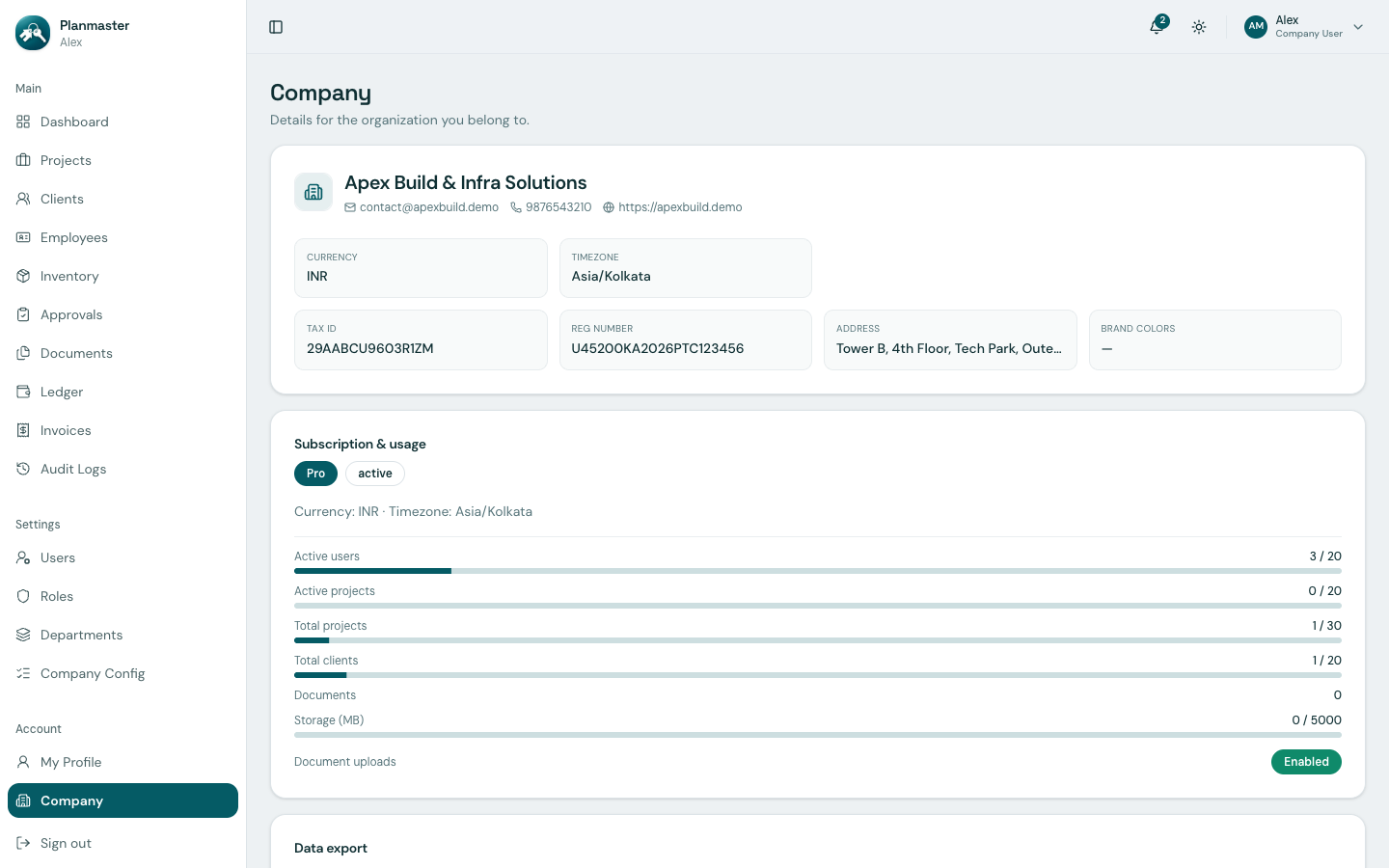
Here you can monitor live usage meters for:
- Active Users: e.g., 3 / 10 seats used.
- Active Projects: e.g., 0 / 10 projects currently in progress.
- Total Projects: e.g., 0 / 10 projects created overall (including completed/inactive ones).
- Total Clients: e.g., 0 / 10 client accounts.
- Document Storage: e.g., 0 / 10,240 MB storage used.
- Data Export: Click Request export to download a full JSON backup bundle of your company's projects, ledger entries, and documents anytime.
Note
Exact seat, project, client, and storage limits depend on your subscription plan and may change over time — always check the live numbers on this page rather than relying on the examples above.