Managing Daily Tasks
Tasks in Planmaster give your site engineering team clarity on daily site execution: what must be cast today, who is responsible for inspection, and which subcontractors need mobilization.
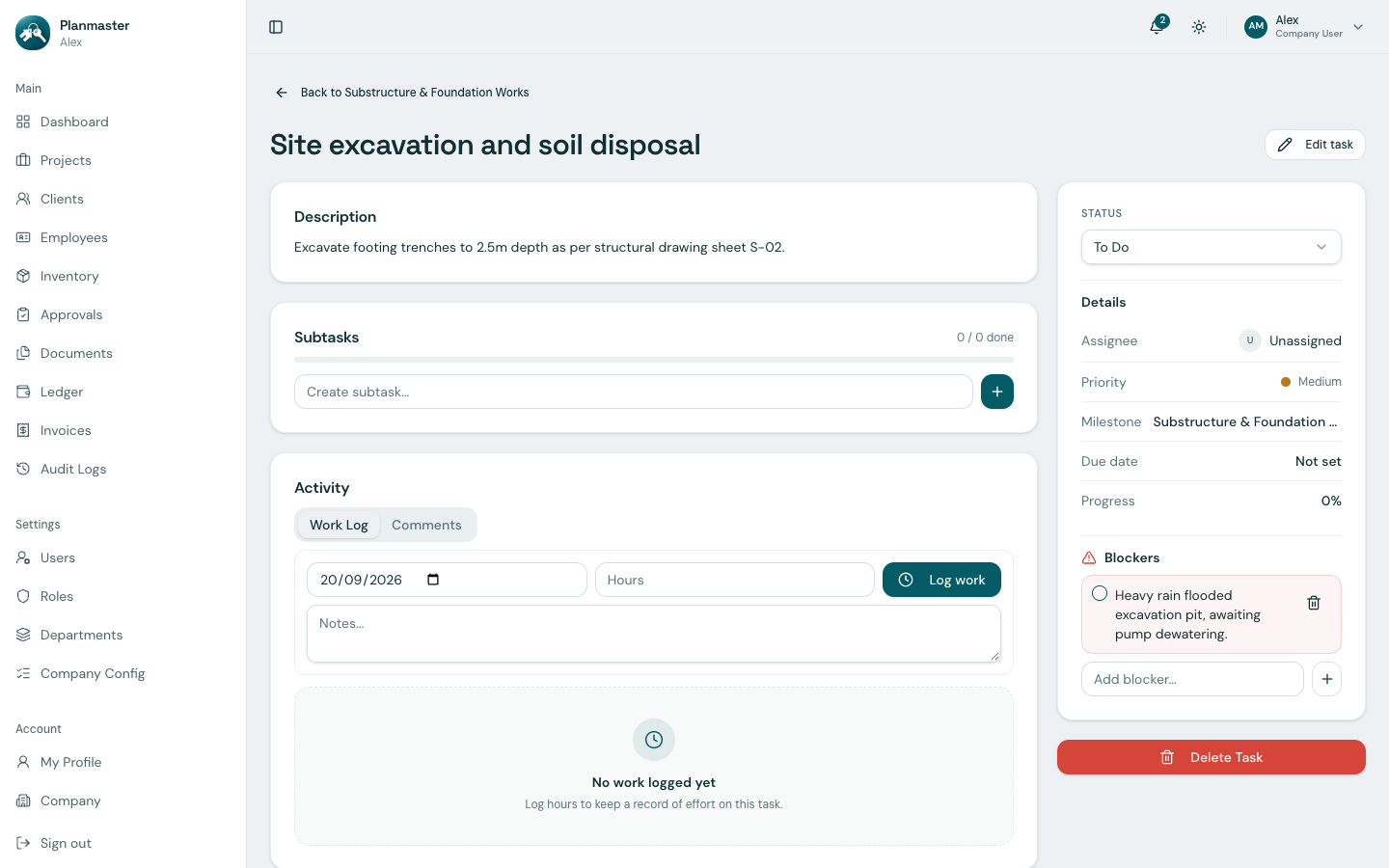
Daily Task Workflow
In Planmaster, tasks are organized directly under major project Milestones (such as Substructure, RCC Frame, or Finishing). This ensures that every hour of site labor is tied to a measurable contractual deliverable.
flowchart TD
    M["Project Milestone: Substructure Works"] --> T1["Task 1: Foundation Excavation"]
    M --> T2["Task 2: PCC Lean Concrete"]
    M --> T3["Task 3: Footing Rebar & Shuttering"]

    T1 --> S1["Subtasks: Survey Check & Depth Verification"]
    T1 --> W1["Work Log: 6.5 Hours Logged"]
    T1 --> B1["Blocker: Awaiting Dewatering Pump"]
Step 1: Navigating to Tasks
- Open your project from the Projects menu.
- Click the Milestones tab.
- Click on any milestone name to open its task list (
/milestones/:id). - Click on any task title to open its full workspace (
/tasks/:id).
Step 2: Working with Task Statuses
As field teams execute work, update the task's status dropdown:
| Status Badge | When to Use It |
|---|---|
To Do |
Scheduled work waiting for preceding activities or site handover. |
In Progress |
Labor and plant are actively engaged on site today. |
Blocked |
Work has stopped due to an active site blocker (see Step 3). |
Done |
Quality inspection cleared; work formally signed off. |
Step 3: Reporting & Resolving Site Blockers
When on-site progress stops due to an external delay (such as waiting for rebar delivery, pending structural drawing revisions, or monsoon waterlogging):
- Inside the task, go to the Blockers card.
- Enter the problem description in the text box (e.g., Heavy rain flooded excavation pit, awaiting pump dewatering).
- Click Add Blocker.
- Planmaster immediately displays a red alert on your company dashboard and on the project overview, alerting project directors that work is blocked.
- Once the issue is resolved, simply check the Resolve box next to the blocker.
Step 4: Tracking Daily Site Hours (Work Log)
Site engineers and supervisors can record hours spent directly on the task:
- Enter the number of hours worked (e.g., 5.0).
- Add notes on equipment used or linear meters executed.
- Click Log Work.
All work logs are aggregated for accurate project cost and productivity analysis. For detailed information on subtasks and comments, see Task Details, Work Logs & Blockers.