Material Catalog & Stock
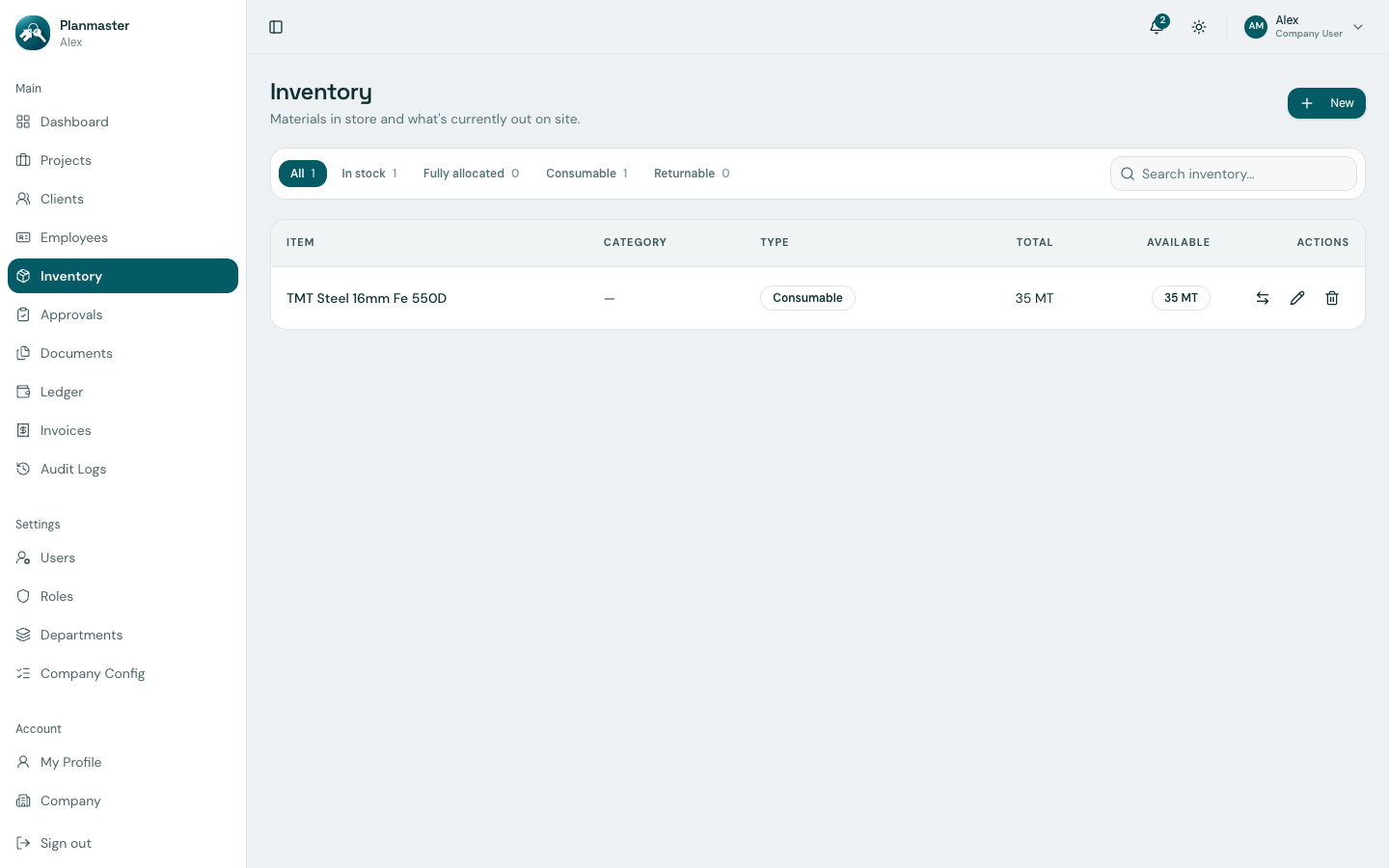
The Inventory module (/inventory) enables your procurement team, site engineers, and storekeepers to track raw construction materials, tools, plant equipment, and safety supplies across your central warehouse and project sites.
Understanding Item Types: Consumable vs. Returnable
In construction, materials behave in two very different ways. Planmaster explicitly tracks both:
| Item Type | Definition | Real-Life Construction Examples | Tracking Behavior in Planmaster |
|---|---|---|---|
| Consumable | Raw materials that are permanently incorporated into the building works and cannot be reused. | Cement bags, TMT rebar, fine sand, coarse aggregate, paint, plumbing PVC pipes. | When approved for transfer to a project, stock decreases from the central warehouse and is marked as consumed on the site. |
| Returnable | Equipment, machinery, and tools that are loaned to a job site during construction and returned to the warehouse once that phase ends. | Scaffolding sets, total station instruments, concrete vibrators, dewatering pumps, power drills. | When transferred, items are tracked as Checked Out to that site. Alerts appear on the dashboard under Checked Out until safely checked back into the store. |
How to Add an Item to the Catalog (Step-by-Step)
- Click Inventory in the left sidebar menu.
- Click the blue New button at the top-right.
- Complete the item fields:
- Item Name: The standard description (e.g., TMT Steel 16mm Fe 550D or OPC 53 Grade Cement).
- Category: Work discipline (e.g., Steel & Metals, Civil Materials, Safety Equipment, Electrical).
- Unit: Measurement unit (e.g.,
MTfor metric tons,bags,kg,nos,meters). - Type: Choose
ConsumableorReturnable. - Total Quantity: Starting physical stock count in the central yard (e.g.,
50). - Minimum Stock (Reorder Buffer): The minimum safe quantity below which a purchase order must be raised (e.g.,
10). - Description: Quality grade, IS code specifications, or preferred supplier information.
- Click Create.
Stock Counters & Automatic Low-Stock Alerts
In the inventory directory: - Total Stock: Total physical quantity owned by the company across all stores and yards. - Available Stock: Quantity currently sitting unallocated in the central warehouse, ready for site dispatch. - Low Stock Dashboard Warning: If available stock drops to or below your configured Minimum Stock threshold, Planmaster immediately displays a warning on your home dashboard under Low Stock, ensuring procurement raises purchase orders before sites run out!